by Vitalii Kukhol, Independent DFIR Researcher
In this article, we’ll work with WMI-Activity, Sysmon, PowerShell, Volatility 3 and Sigma, and set up some hunting along the way.
Permanent WMI subscriptions are a familiar sight in Windows persistence. They don’t need autorun entries, new services or scheduled tasks. Their mechanics are a little more interesting: three linked components are stored in the WMI repository. One defines the trigger conditions, another handles the events, and the third connects the two.
We’ll focus on ActiveScriptEventConsumer. It lets WMI run a script when a specified condition is met, with execution handled by the system process scrcons.exe.
Here’s our lab scenario: we create a subscription that reacts to notepad.exe starting. The subscription’s script then creates a .txt file on the desktop.
What We Want to Find Out
- Which events appear when a WMI subscription is registered.
- Where to look for evidence of
scrcons.exeexecution. - What we can find on disk and in RAM.
- How to turn those findings into hunting conditions and Sigma rules.
- How to remove the subscription afterwards and verify that the persistence is gone.
I disabled antivirus protection for this experiment: even Windows’ built-in protection was doing a good job of blocking my attempts to reproduce the subscription. At this stage, the goal was to understand what happens when the subscription is created, what it leaves behind and how to investigate this technique.
Breaking Down the WMI Objects
- EventFilter defines the event that must occur for the subscription to trigger. It uses a WQL query. Think of it as a motion sensor.
- Consumer defines what to do when the filter triggers.
- ActiveScriptEventConsumer can run our script through Active Scripting. The object specifies the scripting engine and the script contents. In our scenario, the script creates or updates
black_cat.txton the desktop. - Binding connects the filter and the consumer. Without it, WMI doesn’t know to use them together, so this component matters just as much.
The Lab Execution Flow
Timestamps in the narrative use the lab’s local time, UTC+03:00, unless explicitly marked as UTC. The screenshots also contain UTC fields.
Here’s how the sequence works:
- Notepad starts.
- EventFilter detects the event.
- FilterToConsumerBinding links the condition to the action.
- ActiveScriptEventConsumer provides the script for execution.
scrcons.exeruns it.- Our
.txtfile appears on the desktop.
Our first key artifact is scrcons.exe, the system process WMI uses to run ActiveScriptEventConsumer scripts. After Notepad started, scrcons.exe was created with PID 7128. It ran as SYSTEM, and its parent image was svchost.exe.
Why does this matter? If scrcons.exe exits before memory acquisition, it may be missing from a later dump. That doesn’t mean it never ran. We need logs, a timeline and other artifacts to establish execution.
Getting Our Detection Sources Ready
Before running the scenario, we prepare the following evidence sources:
- The Sysmon log.
Microsoft-Windows-WMI-Activity/Operational.Microsoft-Windows-PowerShell/Operational.- The file system.
- Memory and the WMI repository.
Sysmon will show us subscription component registration and process creation. WMI-Activity/Operational will show WMI activity during registration and execution. PowerShell/Operational records the code used during registration. The file system gives us the resulting artifact, while memory and the WMI repository provide more places to look for traces.
Checking the Tools
First, we run:
Get-WinEvent -ListLog `
  'Microsoft-Windows-Sysmon/Operational',
  'Microsoft-Windows-WMI-Activity/Operational',
  'Microsoft-Windows-PowerShell/Operational' |
Select-Object LogName, IsEnabled, RecordCount, FileSize, MaximumSizeInBytes
This checks the logs and the space available for storing events.
Next, we check whether detailed logging of executed PowerShell script blocks is enabled:
Get-ItemProperty `
  'HKLM:\SOFTWARE\Policies\Microsoft\Windows\PowerShell\ScriptBlockLogging' `
  -ErrorAction SilentlyContinue
The setting we’re looking for is:
EnableScriptBlockLogging = 1
Then we check whether Sysmon is recording the events we need:
Get-WinEvent -FilterHashtable @{
    LogName = 'Microsoft-Windows-Sysmon/Operational'
    Id      = 19,20,21
} -ErrorAction SilentlyContinue |
Select-Object -First 10 TimeCreated, Id, Message
The events we care about here are 19, 20 and 21: filter, consumer and binding creation.
One detail about my experiment: the logs still contained records from earlier attempts. I decided that was actually useful. Real investigations rarely start with a clean slate, so object names alone aren’t enough. We need precise timestamps too.
Now for the Interesting Part
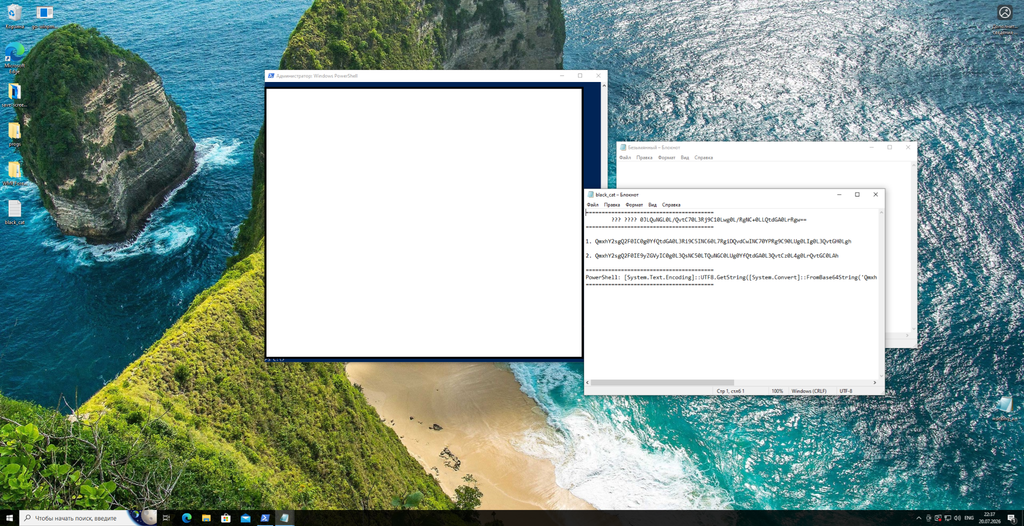
The subscription triggered. I’ve blurred the console commands as a precaution. The lab subscription itself is harmless, but I’d still rather take care with what I show.
Sysmon Events
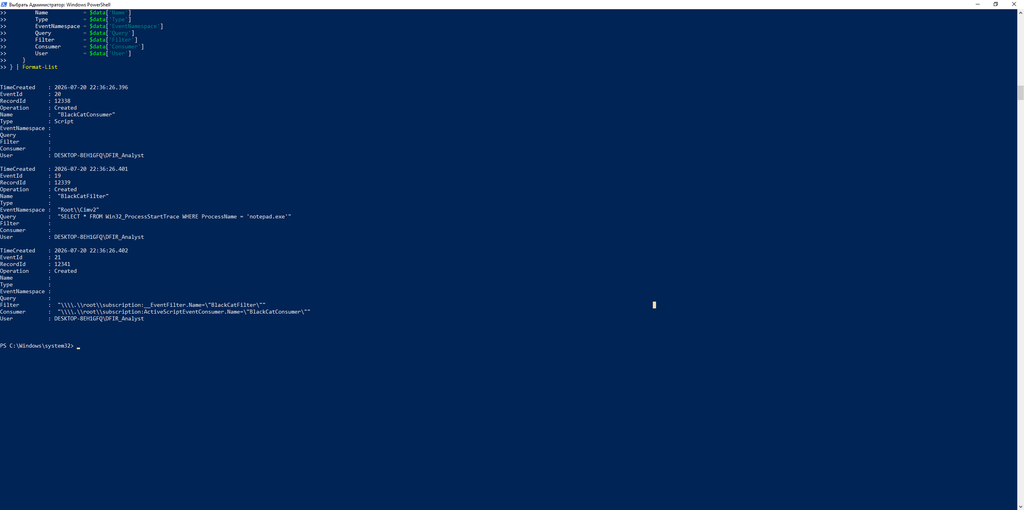
The screenshot shows all three components of our subscription being registered. From here on, we’ll correlate them using the names BlackCatFilter and BlackCatConsumer, along with their timestamps.
To find the relevant time window, we run:
$start = [datetime]'2026-07-20 22:36:20'
$end   = [datetime]'2026-07-20 22:36:35'

Get-WinEvent -FilterHashtable @{
    LogName   = 'Microsoft-Windows-Sysmon/Operational'
    Id        = 19,20,21
    StartTime = $start
    EndTime   = $end
} |
Sort-Object TimeCreated |
Select-Object TimeCreated, Id, Message
This gives us the subscription’s registration events in the time window we need. Notice that all three events are less than a second apart, which supports treating them as one registration operation.
So far, though, we’ve only established registration. Now we need to find out whether the consumer actually ran and whether scrcons.exe started.
Consumer Execution: Hunting for scrcons.exe
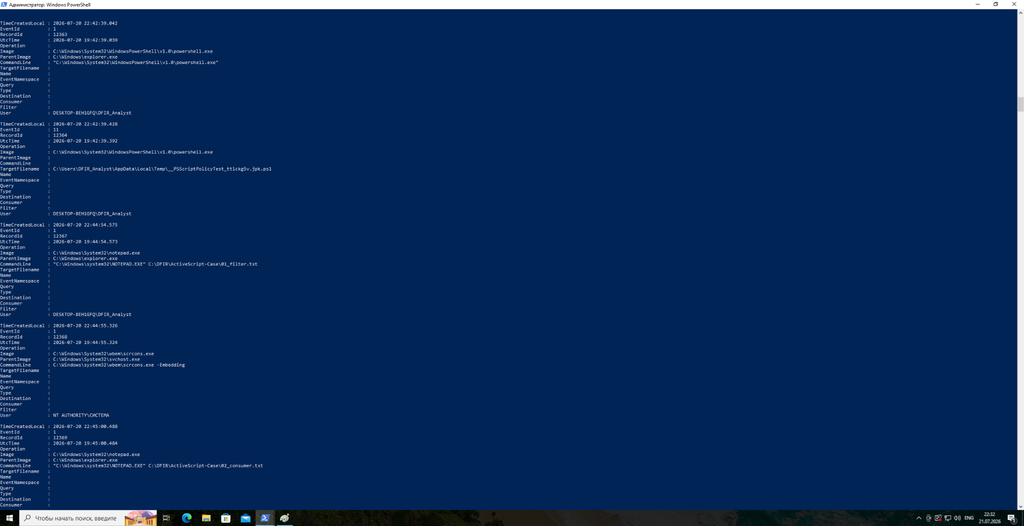
Let’s start with Sysmon Event ID 1:
$start = [datetime]'2026-07-20 22:44:50'
$end   = [datetime]'2026-07-20 22:45:10'

Get-WinEvent -FilterHashtable @{
    LogName   = 'Microsoft-Windows-Sysmon/Operational'
    Id        = 1
    StartTime = $start
    EndTime   = $end
} |
Where-Object {
    $_.Message -match 'notepad\.exe|scrcons\.exe'
} |
Sort-Object TimeCreated |
Select-Object TimeCreated, Id, Message
The log contains these entries:
22:44:54.575—notepad.exestarted.22:44:55.326—scrcons.exestarted, PID7128.
Less than a second separates the two starts. That timing fits our understanding of the subscription: the filter watches for notepad.exe process creation.
A quick reminder about scrcons.exe: it’s a Windows system component used by WMI to run ActiveScriptEventConsumer scripts. Seeing it run is not, by itself, evidence of an attack. Here, we have context: a WMI subscription had already been registered, its filter was waiting for Notepad to start, and the script host appeared afterwards.
Corroborating the Findings with WMI-Activity
Almost at the same time as scrcons.exe started, WMI-Activity recorded Event ID 5857:
Get-WinEvent -FilterHashtable @{
    LogName   = 'Microsoft-Windows-WMI-Activity/Operational'
    Id        = 5857
    StartTime = $start
    EndTime   = $end
} |
Sort-Object TimeCreated |
Select-Object TimeCreated, Id, Message
Result:
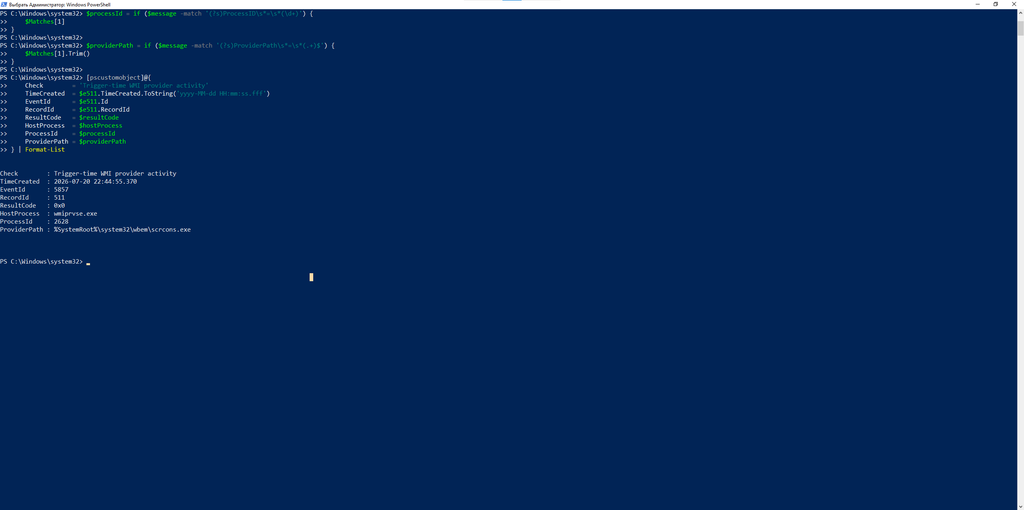
22:44:55.370 — WMI-Activity Event ID 5857, Record ID 511.
Only 44 ms separate the local scrcons.exe creation timestamp from this WMI-Activity event. The latter lists wmiprvse.exe as HostProcess and 2628 as ProcessId; that field is not the scrcons.exe PID 7128.
Finding Another Artifact
At around 22:45:03, the following file was updated:
C:\Users\DFIR_Analyst\Desktop\black_cat.txt
Process and WMI telemetry confirm that the WMI script host started. The later file change is consistent with the consumer’s actions. However, without additional evidence, such as Sysmon Event ID 11, EDR telemetry or Procmon data, we cannot directly attribute the file write to a specific process.
WMI-Activity Events and PowerShell 4104
Let’s look at WMI-Activity events from subscription registration.
We search within a specific time window:
$start = [datetime]'2026-07-20 22:36:20'
$end   = [datetime]'2026-07-20 22:36:35'

Get-WinEvent -FilterHashtable @{
    LogName   = 'Microsoft-Windows-WMI-Activity/Operational'
    Id        = 5857,5859,5861
    StartTime = $start
    EndTime   = $end
} |
Sort-Object TimeCreated |
Select-Object TimeCreated, Id, RecordId, Message
Result:
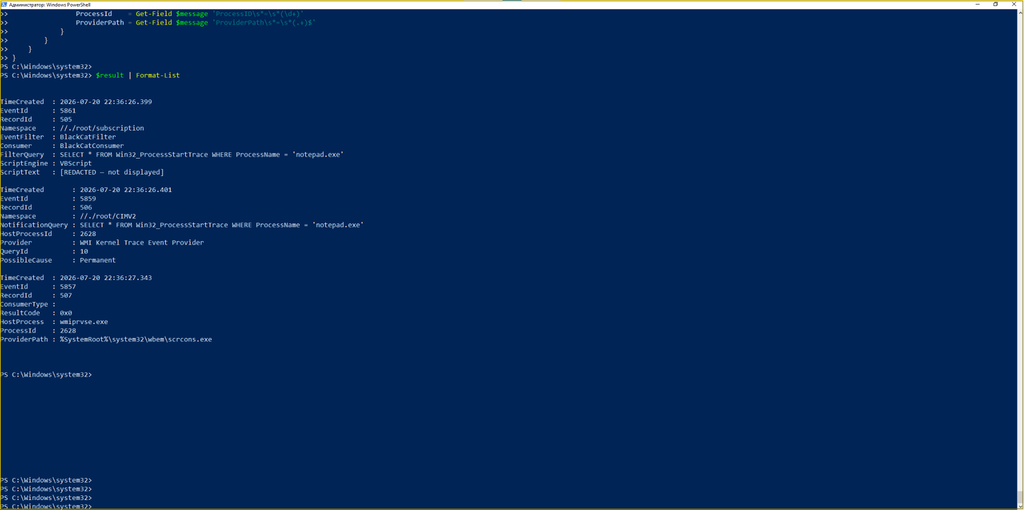
- The screenshot shows three events. Event ID
5861linksBlackCatFilterandBlackCatConsumer. - Event ID
5859shows the persistent WQL query watching fornotepad.exeto start. - Event ID
5857contains the provider path pointing toscrcons.exeandResultCode 0x0. - All these records belong to the registration stage at
22:36. The separate execution sequence at22:44is supported by the Sysmon process creation events and the nearby WMI-Activity Event ID5857, Record ID511.
PowerShell Event ID 4104
Our next source is Script Block Logging. It lets us inspect the script that created the WMI components.
The main registration block appeared in the log at 2026-07-20 22:36:26.274, 122 ms before the first Sysmon event recording the consumer.
Here’s how we find it:
$start = [datetime]'2026-07-20 22:36:20'
$end   = [datetime]'2026-07-20 22:36:35'
Get-WinEvent -FilterHashtable @{
    LogName   = 'Microsoft-Windows-PowerShell/Operational'
    Id        = 4104
    StartTime = $start
    EndTime   = $end
} |
Sort-Object TimeCreated |
Select-Object TimeCreated, Id, RecordId, Message
Result:
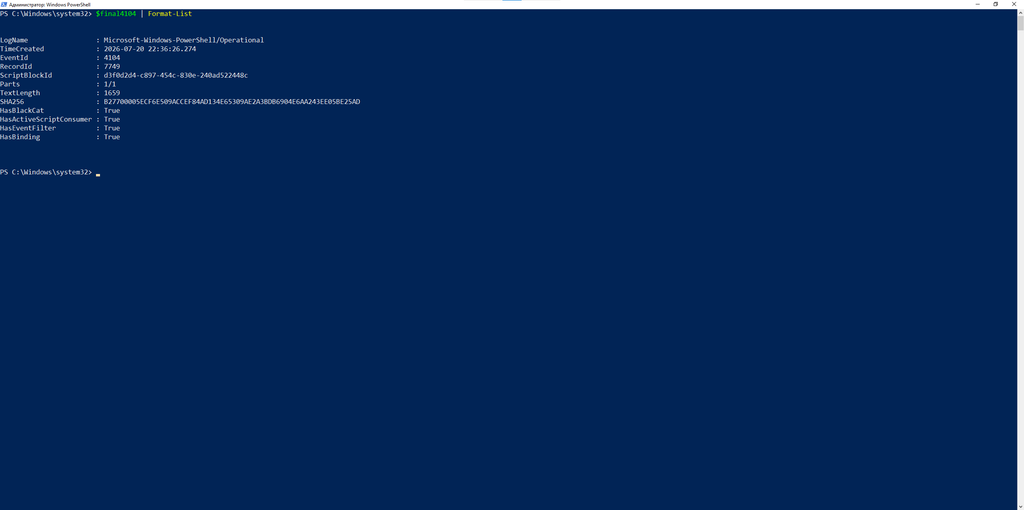
The block we need has Record ID 7749. It was logged in full, in a single part. The checks HasBlackCat, HasActiveScriptConsumer, HasEventFilter and HasBinding all returned true. This means the block contained our object names and references to all three subscription components.
The Record ID lets us return to the exact log entry. The SHA-256 hash lets us verify later that we’re examining the same text. Event ID 4104 shows the executed PowerShell code, while Sysmon events 19–21 confirm subscription registration.
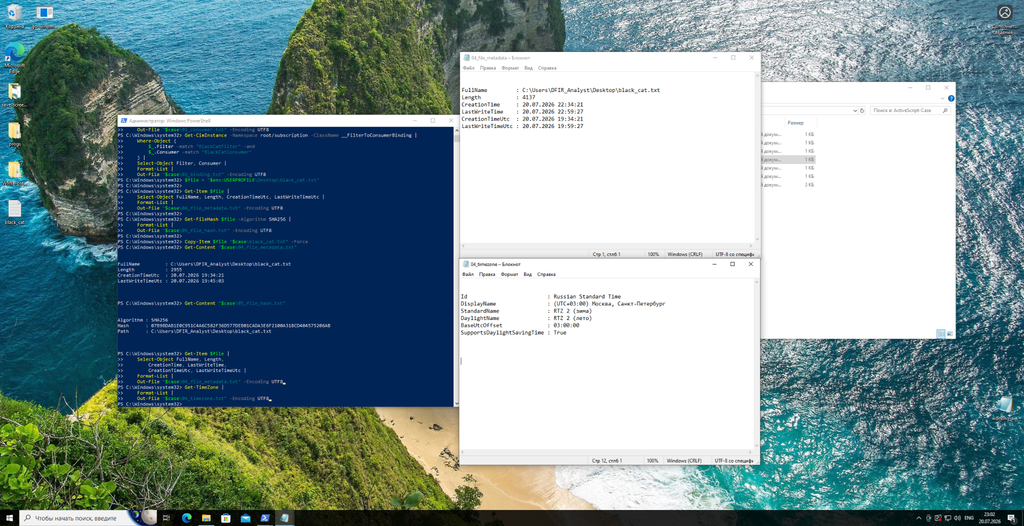
Checking the Timestamps of black_cat.txt
$source = "$env:USERPROFILE\Desktop\black_cat.txt"
$case = "C:\DFIR\ActiveScript-Case"

New-Item -ItemType Directory -Path $case -Force |
    Out-Null

Copy-Item `
    -LiteralPath $source `
    -Destination "$case\black_cat.txt" `
    -Force

$file = Get-Item -LiteralPath $source

[pscustomobject]@{
    FullName         = $file.FullName
    Length           = $file.Length
    CreationTime     = $file.CreationTime
    LastWriteTime    = $file.LastWriteTime
    CreationTimeUtc  = $file.CreationTimeUtc
    LastWriteTimeUtc = $file.LastWriteTimeUtc
} | Format-List

Get-FileHash `
    -LiteralPath $source `
    -Algorithm SHA256 |
Select-Object Algorithm, Hash, Path |
Format-List

Get-TimeZone |
Select-Object Id, DisplayName, BaseUtcOffset |
Format-List
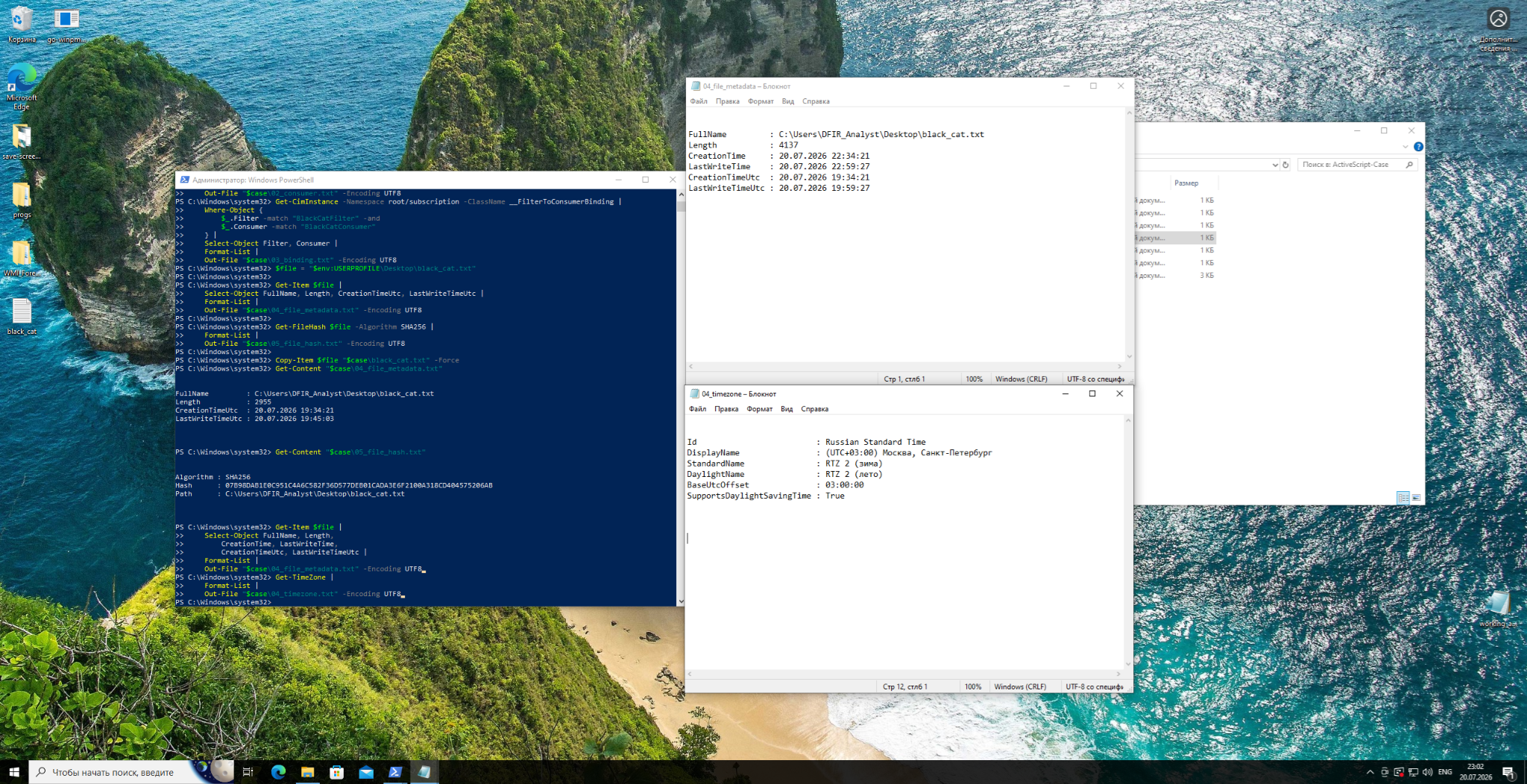
I saved the results of this check several times. The screenshot shows two file states: immediately after the main run and after opening Notepad again later.
Looking for Traces in RAM
The memory image was acquired about 40 minutes after scrcons.exe started. By then, the process could have exited, but other traces of the subscription might still be in memory.
Now we switch to Kali. First, we’ll check the image size and SHA-256 hash, then try opening it with Volatility.
Start with:
MEM="$HOME/DFIR/ActiveScript-Case/evidence/memory_working.raw"
OUT="$HOME/DFIR/ActiveScript-Case/volatility-output"
mkdir -p "$OUT"
stat --printf='Path: %n\nSize: %s bytes\n' "$MEM"
sha256sum "$MEM" | tee "$OUT/00_memory_integrity.txt"
Result:
Size: 4831838208 bytes.
SHA-256: 58c436cb4bd7c6235f543d45b443d55af0b2029c53a12638a76083d78c3513ed
Next, run windows.info:
VOL="$HOME/.venvs/vol3/bin/vol"
"$VOL" -f "$MEM" windows.info |
tee "$OUT/01_windows_info.txt"
Here’s a short summary of the output:
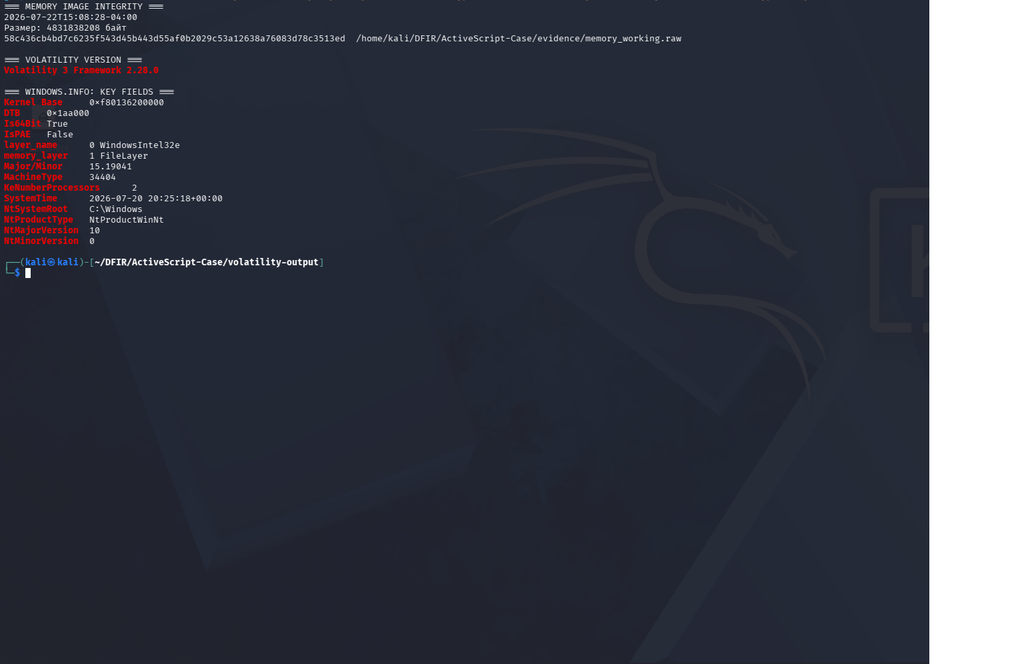
Volatility identified 64-bit Windows 10. That’s good news: the image is readable, and we can keep digging.
Looking for scrcons.exe
First, we save the process list with pslist, then check memory separately with psscan:
"$VOL" -f "$MEM" windows.pslist \
  > "$OUT/02_pslist.txt"
Next, scan for process structures in memory:
"$VOL" -f "$MEM" windows.psscan \
  > "$OUT/03_psscan.txt"
For a quick check of the names we’re interested in:
cd "$OUT" || exit 1

FILTER='scrcons\.exe|notepad\.exe|powershell\.exe|WmiPrvSE\.exe'

grep -EHi "$FILTER" 02_pslist.txt 03_psscan.txt | cut -f1-3,9

printf '\nscrcons.exe matches in pslist/psscan:\n'

grep -EHi 'scrcons\.exe' 02_pslist.txt 03_psscan.txt | wc -l
Our result:
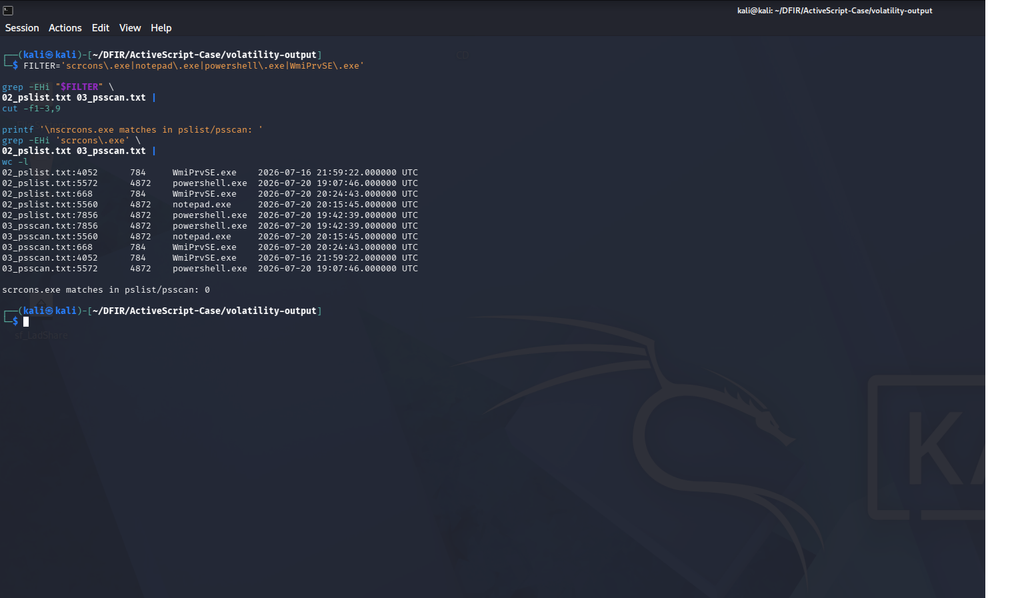
We found notepad.exe, PowerShell and WmiPrvSE.exe in memory. There were zero matches for scrcons.exe.
The image was acquired about 40 minutes later, so the process may already have exited. That is consistent with the search results, but zero matches alone do not establish why it was absent. Sysmon had recorded its start; neither of these searches recovered it from the later image.
Looking for File Traces
Even though these process searches found no scrcons.exe, references to related files could still be in memory. We’ll use windows.filescan to look for them:
"$VOL" -f "$MEM" windows.filescan \
  > "$OUT/04_filescan.txt"
Filter for the results we care about:
grep -Ei \
  'OBJECTS\.DATA|black_cat\.txt|scrcons\.exe|SCRCONS.*\.pf' \
  "$OUT/04_filescan.txt"
Here’s what we have:
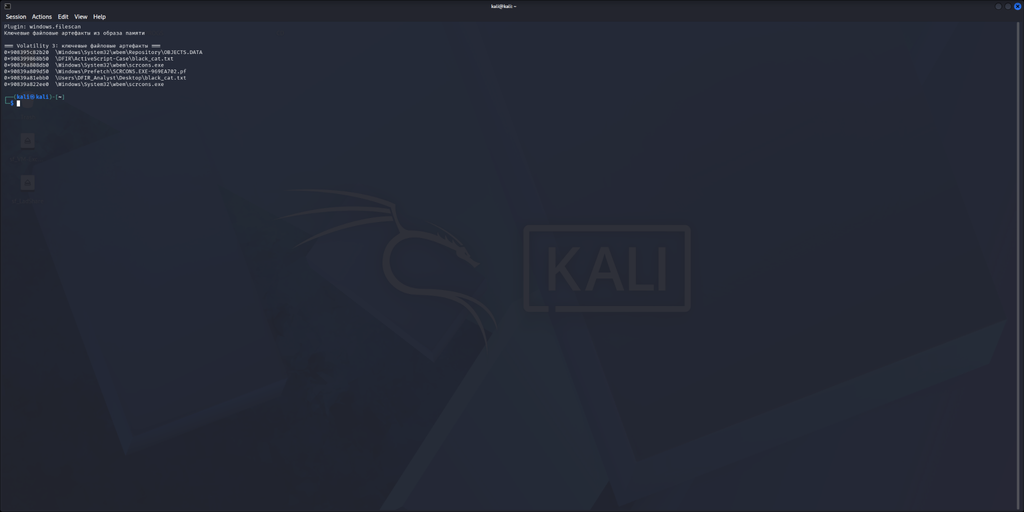
We found references to several files in memory:
OBJECTS.DATA.black_cat.txt.scrcons.exe.SCRCONS.EXE-969EA702.pf.
OBJECTS.DATA belongs to the WMI repository, which stores permanent subscription objects. Memory also retained paths to our black_cat.txt file, the system executable scrcons.exe and its Prefetch file.
filescan shows that traces of these files remained in memory. It does not establish that scrcons.exe was running when the image was acquired, or that it wrote black_cat.txt.
So far, we’ve only found the Prefetch file as a file object. The .pf file itself needs separate analysis.
Trying to Extract OBJECTS.DATA
The screenshot gives us its memory address: 0x908395c82b20.
Now we’ll use that address with the dumpfiles plugin:
mkdir -p "$OUT/objects_data_dump""$VOL" \
-f "$MEM" \
-o "$OUT/objects_data_dump" \
windows.dumpfiles \
--virtaddr 0x908395c82b20We couldn’t recover OBJECTS.DATA in full. Volatility saved only the portions of the file that were still present in memory.
I then checked the recovered fragments and searched for the main WMI strings:
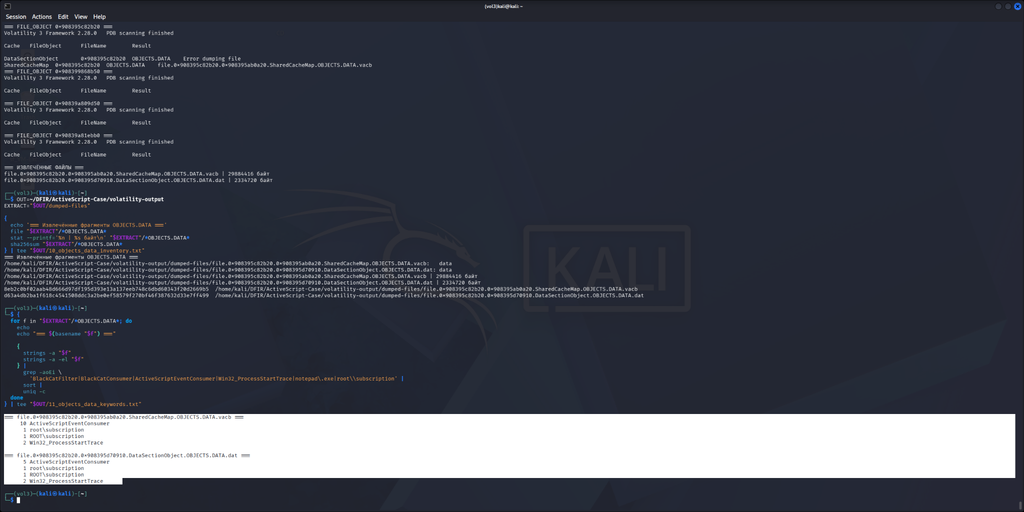
The screenshot brings together the OBJECTS.DATA extraction results and the subsequent string search.
We found:
ActiveScriptEventConsumer.root\subscription.Win32_ProcessStartTrace.
We didn’t find BlackCatFilter or BlackCatConsumer in these fragments.
No disaster there: this is only part of the repository. Let’s search the whole memory image next.
Searching the Entire Image for Strings
Windows often stores text as UTF-16LE, so we’ll start there:
strings -el "$MEM" |
grep -Ei 'BlackCatFilter|BlackCatConsumer|black_cat\.txt'
Then repeat the search for ASCII strings:
strings -a "$MEM" |
grep -Ei 'BlackCatFilter|BlackCatConsumer|black_cat\.txt'
There were too many matches to show comfortably, so I counted them separately and put together a short summary:
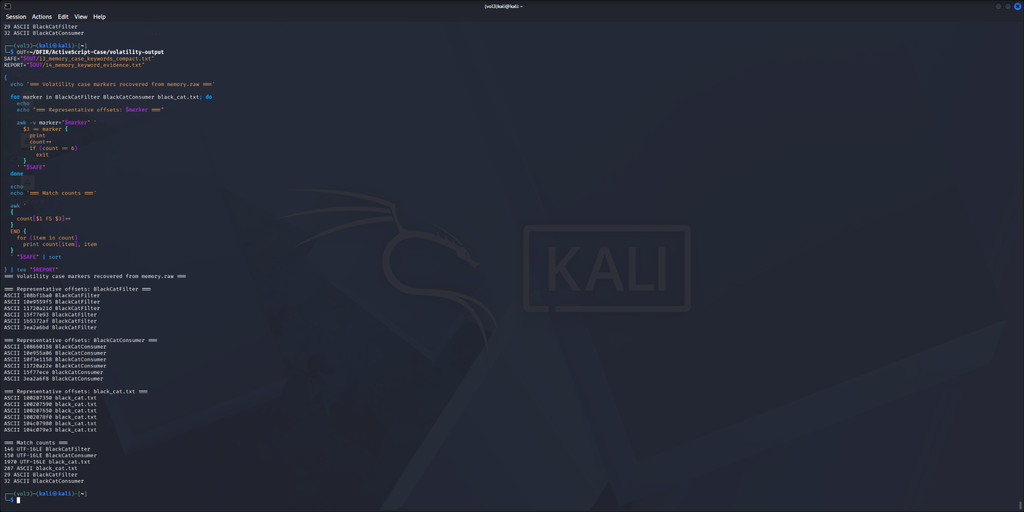
This time, we found BlackCatFilter, BlackCatConsumer and black_cat.txt. The filename appeared a lot, across different encodings.
This search only confirms that related data is present in the image. The number of matching strings does not tell us how many subscriptions existed or how many times the consumer ran.
Putting the Events on a Timeline
After checking the logs, the file and RAM, I combined the main events into one timeline:
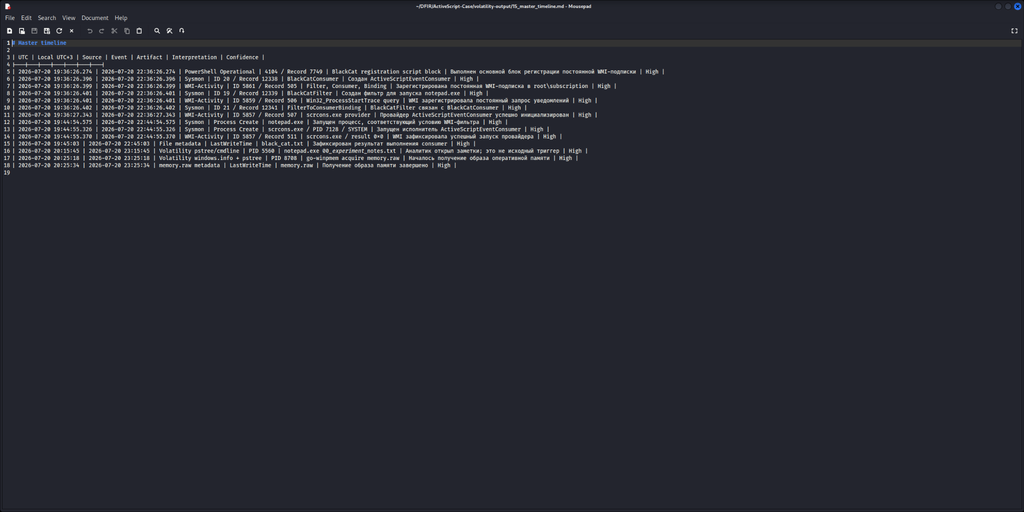
Subscription registration began at 22:36:26. PowerShell Event ID 4104 appeared first, followed by Sysmon and WMI-Activity records of component creation.
At 22:44:54, notepad.exe started. Just under a second later, scrcons.exe appeared. WMI-Activity recorded Event ID 5857 at almost the same time, and black_cat.txt changed at 22:45:03.
Checking the WMI Subscription Objects
We’ve already reconstructed subscription creation from the logs. Now let’s check whether its components are still present in root/subscription.
I always recommend keeping analysis output in dedicated folders. Otherwise, you can make life pretty miserable for yourself later.
$case = "C:\DFIR\ActiveScript-Case"
New-Item -ItemType Directory -Path $case -Force | Out-Null
Collect the filter’s properties:
Get-CimInstance `
  -Namespace root/subscription `
  -ClassName __EventFilter |
Where-Object {
  $_.Name -eq "BlackCatFilter"
} |
Select-Object `
  Name, EventNamespace, QueryLanguage, Query |
Format-List |
Out-File `
  -FilePath "$case\01_filter.txt" `
  -Encoding UTF8
Check the consumer:
Get-CimInstance `
  -Namespace root/subscription `
  -ClassName ActiveScriptEventConsumer |
Where-Object {
  $_.Name -eq "BlackCatConsumer"
} |
Select-Object `
  Name, ScriptingEngine, CreatorSID |
Format-List |
Out-File `
  -FilePath "$case\02_consumer.txt" `
  -Encoding UTF8
And finally, the binding:
Get-CimInstance `
  -Namespace root/subscription `
  -ClassName __FilterToConsumerBinding |
Where-Object {
  $_.Filter -match "BlackCatFilter" -and
  $_.Consumer -match "BlackCatConsumer"
} |
Select-Object Filter, Consumer |
Format-List |
Out-File `
  -FilePath "$case\03_binding.txt" `
  -Encoding UTF8
Here’s the result:
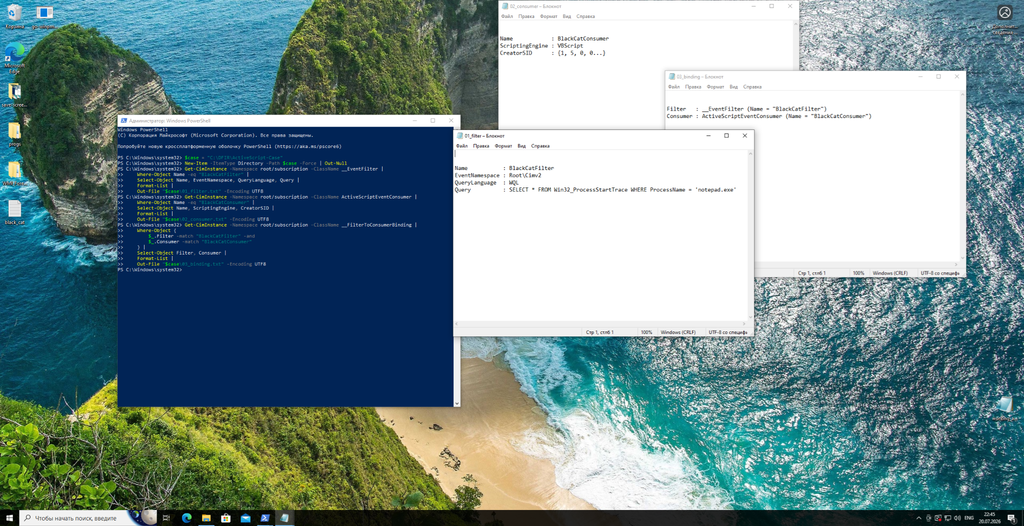
The state of root/subscription: filter, consumer and binding.
The BlackCatFilter properties show a query that reacts to notepad.exe starting. BlackCatConsumer uses VBScript, and the binding links it to the filter we found.
Unlike the Sysmon records, these commands show the state of WMI at the time of the check. They don’t give us creation timestamps, and their output alone doesn’t prove that the script ran.
Turning the Findings into Sigma Rules
You can still check all of this manually on one PC. But since we’re going full hardcore and thinking in terms of 100+ devices, it makes more sense to turn the findings into Sigma rules.
We already know that Sysmon events 19, 20 and 21 show registration. Event ID 1 can show scrcons.exe starting, while PowerShell 4104 helps establish how the objects were created.
Consumer Registration
Let’s start with Event ID 20.
The rule:
title: WMI ActiveScript Event Consumer Registration
status: experimental

logsource:
  product: windows
  service: sysmon

detection:
  selection:
    EventID: 20
    Type: Script

  condition: selection
Type: Script selects consumers that use scripts. A match doesn’t mean we’ve caught an attack. It gives us a reason to check the object name, its registration time and the related events 19 and 21.
In our case, the rule should detect BlackCatConsumer being created.
Filter and Binding
Next, a rule that looks for filter creation through Event ID 19:
title: WMI Event Filter Registration
status: experimental

logsource:
  product: windows
  service: sysmon

detection:
  selection:
    EventID: 19

  condition: selection
After a match, inspect the query inside the filter. In our case, it watched for notepad.exe to start.
Now for the binding:
title: WMI Filter To Consumer Binding Registration
status: experimental

logsource:
  product: windows
  service: sysmon

detection:
  selection:
    EventID: 21

  condition: selection
This rule shows which objects were linked together.
Bringing the Events Together
A match from any one of these three rules is worth checking. Things get much more interesting when all three events appear within a short time window.
Rule: scrcons.exe Execution
We’ve covered the registration events. Now we need to track scrcons.exe starting separately:
title: WMI Script Consumer Process Execution
status: experimental
logsource:
  product: windows
  category: process_creation
detection:
  selection:
    Image|endswith: '\wbem\scrcons.exe'
  condition: selection
This rule uses process creation events, such as Sysmon Event ID 1, to spot the script host used by ActiveScriptEventConsumer starting.
PowerShell Rule
If the subscription was created through PowerShell, the log may contain an Event ID 4104 with the script text. We’ll use the WMI class names and namespace in our rule:
title: PowerShell WMI Subscription Registration
status: experimental

logsource:
  product: windows
  category: ps_script
  definition: Script Block Logging must be enabled

detection:
  selection_objects:
    ScriptBlockText|contains|all:
      - 'ActiveScriptEventConsumer'
      - '__EventFilter'
      - '__FilterToConsumerBinding'

  selection_namespace:
    ScriptBlockText|contains:
      - 'root/subscription'
      - 'root\subscription'

  condition: selection_objects and selection_namespace
This rule requires all three class names to appear in the same PowerShell script block.
In our lab, Event ID 4104 with Record ID 7749 meets those conditions. The event helps us establish how the subscription was registered.
One catch: if another program created the objects, or they were created through separate commands, the rule may not match. That’s why I recommend using it alongside the Sysmon rules above.
Checking the Detection Conditions Locally
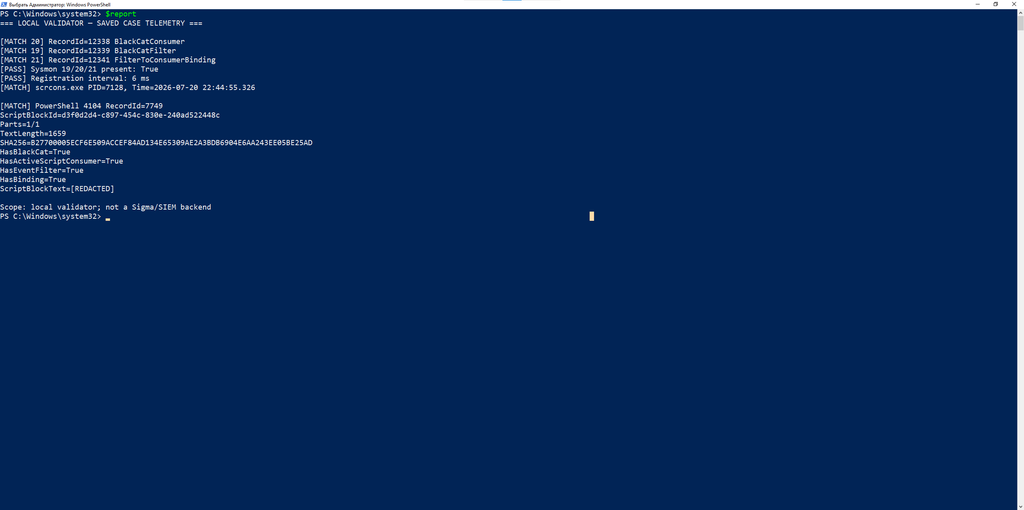
The local validator found the registration events, scrcons.exe execution and the PowerShell commands in Event ID 4104. This checks the detection conditions against saved case telemetry; it is not a test of compiled Sigma rules in a SIEM backend.
I redacted the PowerShell code from the displayed report. It isn’t needed for this part of the article, but in an actual investigation it would matter a lot. The Record ID, size, SHA-256 hash and matched indicators were also preserved.
If you move these rules into a SIEM, you still need to test them there separately.
Time to Clean Up
As any analyst knows, before deleting anything, we need to make sure we’ve saved all the evidence and haven’t missed anything.
By this point, I had saved the Sysmon, WMI-Activity and PowerShell logs, along with the collected object metadata, file hashes and memory image.
Before removal, retrieve the subscription components again and store them in variables:
$namespace = 'root/subscription'

$filter = Get-CimInstance `
  -Namespace $namespace `
  -ClassName __EventFilter |
Where-Object {
  $_.Name -eq 'BlackCatFilter'
}

$consumer = Get-CimInstance `
  -Namespace $namespace `
  -ClassName ActiveScriptEventConsumer |
Where-Object {
  $_.Name -eq 'BlackCatConsumer'
}

$binding = Get-CimInstance `
  -Namespace $namespace `
  -ClassName __FilterToConsumerBinding |
Where-Object {
  $_.Filter -match 'Name="BlackCatFilter"' -and
  $_.Consumer -match 'Name="BlackCatConsumer"'
}

[pscustomobject]@{
  FilterCount   = @($filter).Count
  ConsumerCount = @($consumer).Count
  BindingCount  = @($binding).Count
} |
Format-List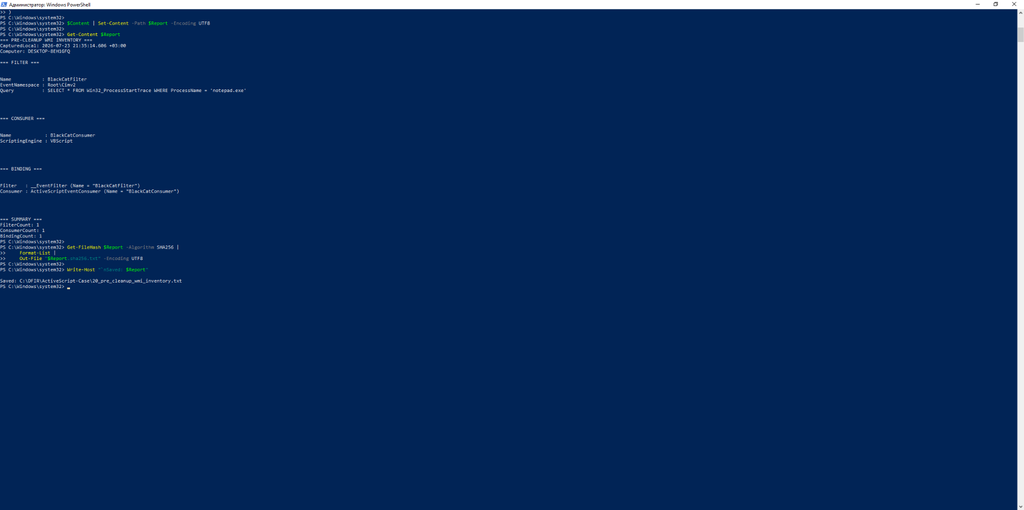
As we can see, all three subscription components were still present before cleanup. I recommend saving this report separately and recording its SHA-256 hash.
We’ll remove them in this order: binding, consumer, filter.
Removing the Subscription
Binding
$binding |
Select-Object Filter, Consumer
After checking it, remove it:
$binding | Remove-CimInstanceConsumer
$consumer |
Select-Object Name, ScriptingEngine, CreatorSID
Then run:
$consumer | Remove-CimInstanceFilter
$filter |
Select-Object Name, EventNamespace, QueryLanguage, Query
After checking it:
$filter | Remove-CimInstanceVerifying Cleanup
Check root/subscription again:
$postCleanup = try {
    $filterAfter = @(
        Get-CimInstance `
            -Namespace $namespace `
            -ClassName __EventFilter `
            -ErrorAction Stop |
        Where-Object {
            $_.Name -eq 'BlackCatFilter'
        }
    )

    $consumerAfter = @(
        Get-CimInstance `
            -Namespace $namespace `
            -ClassName ActiveScriptEventConsumer `
            -ErrorAction Stop |
        Where-Object {
            $_.Name -eq 'BlackCatConsumer'
        }
    )

    $bindingAfter = @(
        Get-CimInstance `
            -Namespace $namespace `
            -ClassName __FilterToConsumerBinding `
            -ErrorAction Stop |
        Where-Object {
            $_.Filter -match 'Name="BlackCatFilter"' -or
            $_.Consumer -match 'Name="BlackCatConsumer"'
        }
    )

    [pscustomobject]@{
        Check            = 'Post-cleanup WMI verification'
        ComputerName     = $env:COMPUTERNAME
        CheckedAt        = Get-Date
        Namespace        = $namespace
        QuerySucceeded   = $true
        FilterCount      = $filterAfter.Count
        ConsumerCount    = $consumerAfter.Count
        BindingCount     = $bindingAfter.Count
        CleanupConfirmed = (
            $filterAfter.Count -eq 0 -and
            $consumerAfter.Count -eq 0 -and
            $bindingAfter.Count -eq 0
        )
        Error             = $null
    }
}
catch {
    [pscustomobject]@{
        Check            = 'Post-cleanup WMI verification'
        ComputerName     = $env:COMPUTERNAME
        CheckedAt        = Get-Date
        Namespace        = $namespace
        QuerySucceeded   = $false
        FilterCount      = $null
        ConsumerCount    = $null
        BindingCount     = $null
        CleanupConfirmed = $false
        Error             = $_.Exception.Message
    }
}

$postCleanup | Format-List
The result we’re looking for is:
QuerySucceeded: true.- Counts of
0/0/0. CleanupConfirmed: true.- No error reported in
Error.
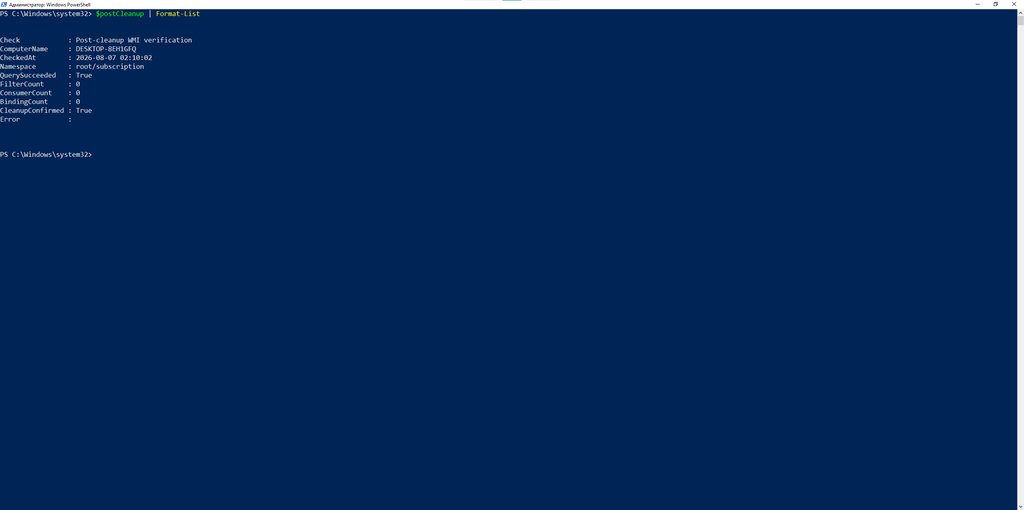
The query succeeded, and our subscription is gone.
I took this screenshot during a later repeat check, so its timestamp differs from the post-cleanup test shown next.
The Post-Cleanup Test
Now let’s see how the system behaves after the subscription has been removed.
First, preserve the old black_cat.txt under a different name. Start Notepad, wait a few seconds, then check WMI, the desktop for a new file, and the Sysmon events.
Result:
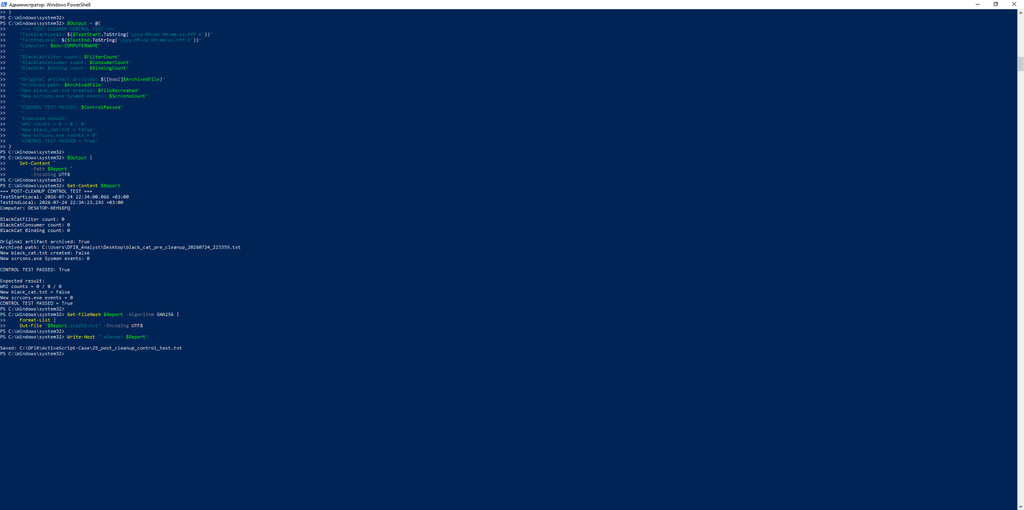
In the post-cleanup test, New black_cat.txt created: False shows that no new file appeared. New scrcons.exe Sysmon events: 0 means Sysmon recorded no new start of the consumer’s script host.
In a real case, it’s worth repeating the check after a reboot to make sure a second persistence mechanism hasn’t brought the subscription back and that cleanup has held.
Increasing Log Sizes
During the checks, I noticed that WMI-Activity had a log size limit of just 1 MB. PowerShell Operational was capped at about 15 MB, and Sysmon at 64 MB.
When logs run out of room, new records can overwrite old ones. That’s a problem for us, so let’s give them more space.
Set WMI-Activity to 32 MB
wevtutil sl `
  "Microsoft-Windows-WMI-Activity/Operational" `
  /ms:33554432
Set PowerShell Operational to 64 MB
wevtutil sl `
  "Microsoft-Windows-PowerShell/Operational" `
  /ms:67108864
Set Sysmon Operational to 128 MB
wevtutil sl `
  "Microsoft-Windows-Sysmon/Operational" `
  /ms:134217728
Result:
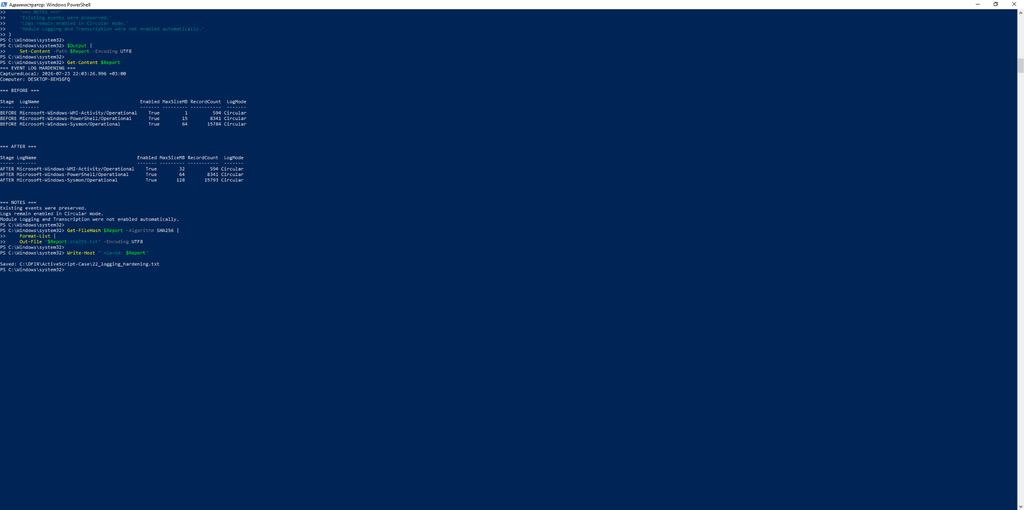
The log sizes before and after the change.
Increasing the size doesn’t enable new event types. It simply gives the logs more room. Choose the limits based on event volume, available disk space and whether the logs are being forwarded to a SIEM.
Limitations of the Lab
This whole exercise took place in a lab where we already knew the object names. In a real case, you can’t search only for these names: a subscription can be named anything.
The memory image was acquired late. That underlines the importance of responding quickly: a later memory capture may no longer contain traces of the full sequence of events.
The detection conditions were checked locally against saved events. The Sigma rules were not tested through a Sigma or SIEM backend. If you use them in your own SIEM, you’ll need to validate and tune them for your environment, particularly for false positives.
Wrapping Up
We investigated a WMI subscription that falls under ATT&CK technique T1546.003. Sysmon showed us the filter and consumer being registered and the binding between them, while PowerShell 4104 preserved the script block.
I won’t go over the scenario again. My main takeaway is that one evidence source really isn’t enough here. Logs, detections, the file system and memory show different parts of the same story. The sooner you set up collection and give the logs enough room, the better your chances of reconstructing an attack. And remember: timestamps and fast detection can make or break the whole investigation.
My GitHub Repository
ActiveScriptEventConsumer-DFIR
Sources
- MITRE ATT&CK: Windows Management Instrumentation Event Subscription, T1546.003 — technique overview and variations.
- Microsoft: ActiveScriptEventConsumer — the consumer’s purpose and properties.
Vitalii, also known as Debusterlil, is an independent DFIR researcher focused on Windows forensics, threat detection, and reverse engineering. His work centers on reproducible Windows labs, endpoint artifact analysis, timeline reconstruction, memory forensics, and turning investigative findings into practical detection logic using tools such as Sysmon, PowerShell, Volatility 3, and MITRE ATT&CK. He is also a published author at Xakep.ru and is currently expanding his skills in malware analysis, x86-64 assembly, and reverse engineering.