Pieces0310 is a digital forensics practitioner with many years of experience in computer and mobile investigations, strengthened by a solid background in cybersecurity.
When forensic examiners complete the acquisition of an evidence image file but find that the partition content is unrecognizable upon mounting, they must consider whether encryption is the cause. A BitLocker volume protected by a Clear Key contains the key material needed to unlock the encrypted volume within the forensic image itself, so no external recovery key or password is required. I will use dislocker and bdeinfo to unveil the mystery behind BitLocker Clear Key.
Identifying the BitLocker-Encrypted Partition
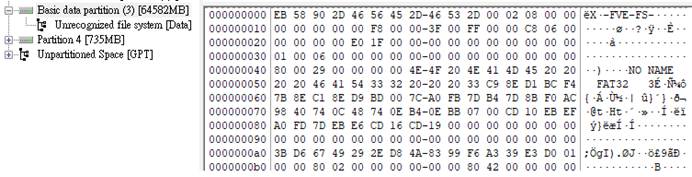
First, let’s look at a BitLocker-encrypted image file that uses a clear key. There is indeed a partition suspected of being encrypted and protected, causing the file system structure within it to be unrecognizable. Based on the presence of the classic signature “-FVE-FS-” in its partition header, we can tell it is BitLocker encryption, where FVE stands for Full Volume Encryption, as shown in the figure below.
Preparing the Forensic Image
Next, for compatibility with the tools and workflow used in this example, I converted the forensic image file (.E01) to raw (.dd) format and then copied it to an external hard drive. Since the ultimate goal is to decrypt this BitLocker partition and produce a decrypted raw image to an external drive, I first confirmed that the external drive was successfully mounted and in rw (read-write) mode, as shown in the figure below.

Let’s take a look at this image file named bitlocker-clearkey.dd. The signature “-FVE-FS-” can be clearly observed at this point viewed via the hexdump command or the dislocker tool, as shown in the figure below.

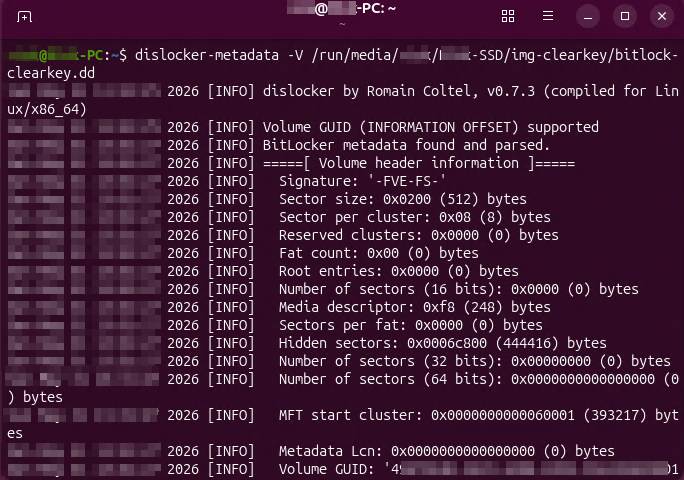
Using Dislocker
Some might be curious: what is this tool named dislocker used for? It is a super powerful tool on Linux used to decrypt, mount, and access BitLocker-encrypted partitions or image files. I use dislocker to decrypt the BitLocker image file and output the decrypted virtual NTFS device to a specified path. The full command is shown in the figure below.

Understanding the Dislocker Command
To help everyone understand what the command is doing, the command and its parameters are broken down as follows:
-V: Specifies the volume, followed by the BitLocker partition or image file
–: These are two hyphens indicating the end of parameters; any strings following them will no longer be treated as parameters
The ~/decrypted at the very end of the command is the output path I specified. After execution, a file named dislocker-file will be generated in the decrypted folder under the home directory, as shown in the figure below.

Understanding the Dislocker File
However, it is not an ordinary file, but a “virtual decrypted disk interface” provided through FUSE (Filesystem in Userspace). What makes the dislocker-file special is that although it reports approximately the same apparent size as the BitLocker volume, it is a virtual decrypted disk interface and does not consume an equivalent amount of storage space. This is a thoughtful design by dislocker for space utilization, avoiding the hassle of directly generating a massive decrypted image file. The decrypted raw image is only obtained when forensic examiners copy it to a destination disk.

Monitoring the Copy Progress
To monitor the copy progress in real time, monitor the size of the destination image file:
watch -n1 ‘ls -lh {path}/dislocker-file’


Verifying the Decrypted Image
So how do we verify that the image file named dislocker-file is indeed a successfully decrypted raw image? Forensic examiners only need to mount it to find out that the partition’s file system is NTFS. Its file system structure and the content of a file named passwords.txt are shown in the figure below.
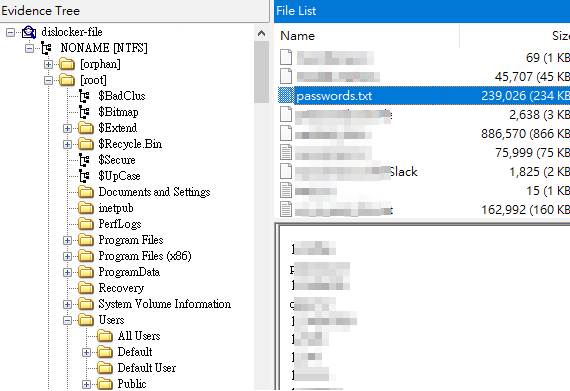
It is worth noting that dislocker is not only capable of handling clear key BitLocker. If the password, recovery key, or .bek file is known, dislocker can also be utilized for processing.
Examining the Image with Bdeinfo
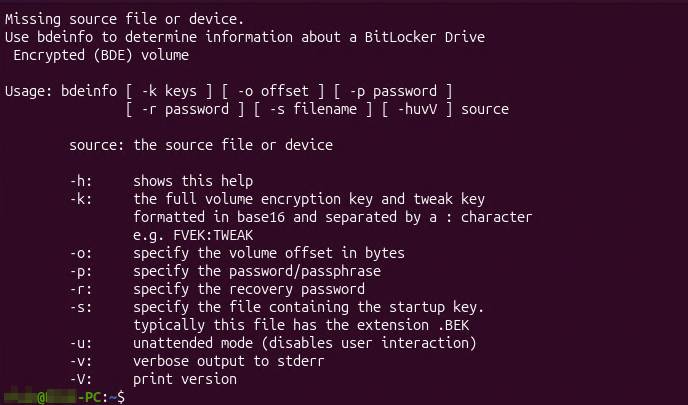
In addition to dislocker, there is another tool that can effectively parse BitLocker called bdeinfo, which stands for BitLocker Drive Encryption Information. When the bdeinfo command is run directly without any parameters, an unspecified error message will be received. At the same time, bdeinfo will thoughtfully provide hints regarding relevant parameters and descriptions, as shown in the figure below.
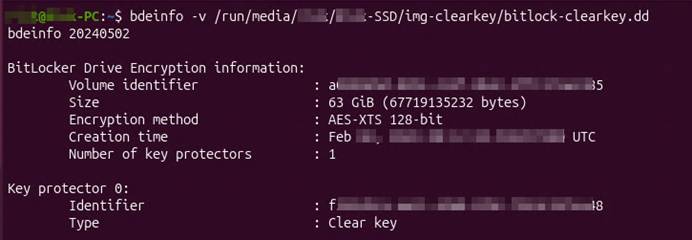
Next, the bdeinfo command along with the -v parameter was used to parse the encrypted image file named bitlocker-clearkey.dd. The full command and the parsing results reveal that its key protector type is “Clear key”, as shown in the figure below.
Decrypting the Image with Bdemount
At this point, forensic examiners only need to execute the bdemount command to directly decrypt the image file and output the decrypted result to the specified mount point. The full command is shown in the figure below.

So, what will appear under that mount point? If you already understand what was mentioned above, you should be able to answer it. The answer is the decrypted virtual disk file, named bde1, as shown in the figure below.

Mounting and Exploring Bde1
So how can we view what files and folders are contained within bde1? Simply execute the mount command as shown in the figure below. The descriptions for the relevant parameters are as follows:
loop – Simulates a file as a block device
ro – Read-only

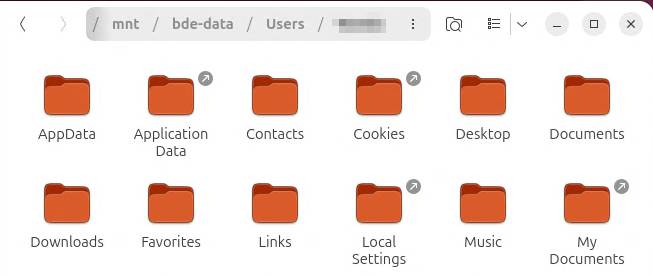
The reason a loop device can be used to mount the file as a block device is that the virtual disk file bde1 itself is derived from decrypting a BitLocker-encrypted disk/partition image file. After mounting, the files and folders within the image file can be smoothly navigated. The current path is the home directory of a certain user, as shown in the figure below.
Key Takeaways
Dislocker and bdeinfo can be used to identify, decrypt, and access a BitLocker-encrypted image protected by a Clear Key. Although the partition initially appeared unrecognizable, the presence of the “-FVE-FS-” signature confirmed that BitLocker encryption was involved.
Both dislocker and the libbde tools successfully exposed a decrypted virtual disk file that could be mounted and examined. This demonstrates that, when a BitLocker volume uses a Clear Key, forensic examiners may be able to access the encrypted data without an external password or recovery key.